

SFM Compile Explained (2026): Complete Source Filmmaker Model Compilation Guide for Beginners & Professionals
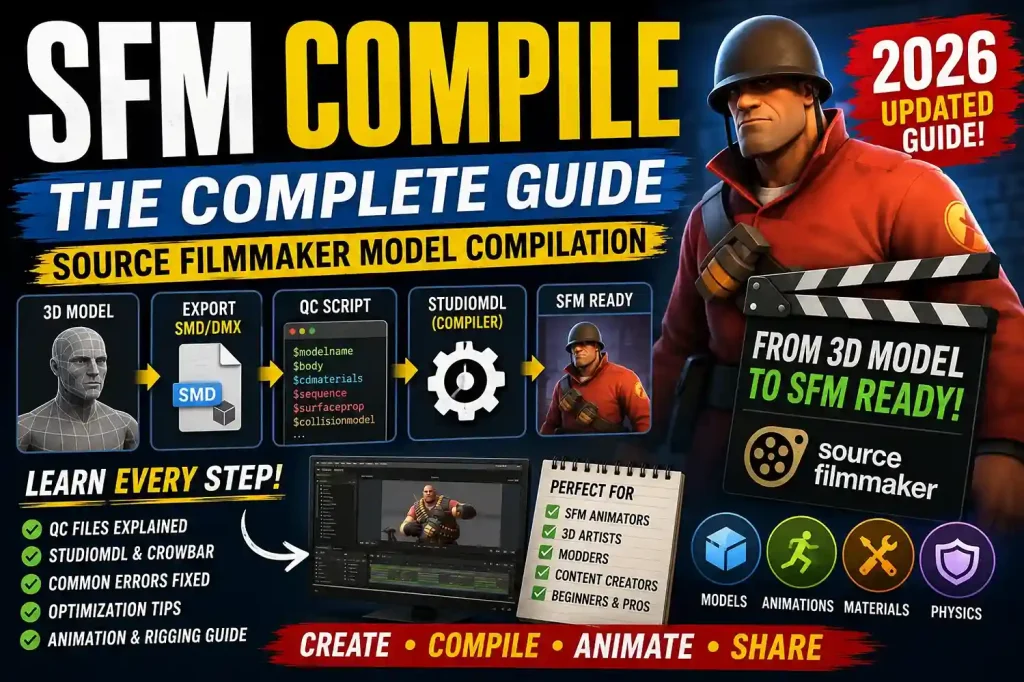
SFM Compile
Creating custom models is one of the biggest reasons artists enjoy using Source Filmmaker (SFM). Whether you are building original characters, cinematic props, animated environments, or custom weapons, every asset must go through one essential process before it can be used inside SFM. That process is known as SFM Compile.
Many beginners spend hours designing a model in Blender or Maya, only to discover that Source Filmmaker cannot open it directly. Unlike modern game engines, SFM relies on the Source Engine’s compilation pipeline to convert editable 3D assets into optimized model files. Without proper compilation, even a perfectly designed model will fail to appear inside the software.
At first glance, compiling may seem complicated. New creators often encounter unfamiliar terms such as QC files, StudioMDL, Crowbar, SMD, DMX, VTX, and VVD. While these components appear technical, they each serve a specific purpose within the Source Engine workflow.
Once you understand how the compilation process works, creating custom assets becomes significantly easier. Every successful Source Filmmaker creator follows the same general pipeline: prepare the model, export the required files, write a QC script, compile the project, and test the finished asset inside SFM.
This guide explains every stage of the process in a beginner-friendly manner while also covering professional techniques used by experienced Source Engine artists. Whether you are compiling your first custom prop or building a fully animated character, this article will help you understand the complete workflow from start to finish.
Quick Answer
If you want the short version before diving into the complete guide, here’s what you need to know.
| Category | Details |
|---|---|
| Topic | Source Filmmaker Model Compilation |
| Primary Purpose | Convert editable 3D assets into Source Engine models |
| Main Compiler | StudioMDL |
| Popular Helper Tool | Crowbar |
| Common Model Formats | SMD, DMX |
| Output Files | MDL, VVD, VTX, PHY |
| Skill Level | Beginner to Advanced |
| Best For | SFM Artists, Animators, Modders and Game Creators |
What Is SFM Compile?
SFM Compile is the process of converting editable 3D assets into model files that Source Filmmaker can load and render. Since SFM is built on Valve’s Source Engine, it cannot read common modeling formats such as FBX or Blender project files directly.
Instead, every model must be compiled into Source-compatible files.
During compilation, the compiler gathers information from several files, including the model, skeleton, animations, textures, physics data, and configuration scripts. It then packages everything into optimized Source Engine model files.
Without compilation, Source Filmmaker has no way of understanding how your custom asset should behave.
Why Compilation Is Necessary
Modern modeling software stores much more information than a game engine actually needs.
For example, Blender projects often include:
- Modifier stacks
- Hidden objects
- Reference images
- Collections
- Scene settings
- Cameras
- Lighting
- Unused meshes
Source Filmmaker only needs the information required to display and animate the finished model.
Compilation removes unnecessary data while organizing everything into a format optimized for the Source Engine.
This process improves:
- Performance
- Loading speed
- Memory usage
- Animation playback
- Material management
How the Source Engine Uses Compiled Models
Unlike many modern engines that import assets automatically, the Source Engine separates development files from runtime files.
The editable files remain inside your project folder while compiled assets become optimized models ready for animation.
A simplified workflow looks like this:
Create Model
↓
Apply Materials
↓
Rig Skeleton
↓
Export SMD or DMX
↓
Write QC Script
↓
Compile Using StudioMDL
↓
Generate MDL Files
↓
Open Inside Source Filmmaker
Every successful SFM project follows this general pipeline.
Understanding the Source Engine Compilation Pipeline
Compilation is more than simply pressing a button.
Several independent components work together to produce the final model.
Each stage prepares information for the next stage.
Stage 1: Model Creation
Everything begins inside a 3D modeling application.
Popular choices include:
- Blender
- Autodesk Maya
- 3ds Max
Artists create:
- Characters
- Weapons
- Buildings
- Props
- Vehicles
- Accessories
- Environment assets
Before exporting, the model should already have:
- Correct proportions
- Clean geometry
- Proper UV maps
- Finished textures
- Working skeleton
- Proper object names
The cleaner the model, the easier the compilation process becomes.
Stage 2: Exporting Source-Compatible Files
Once modeling is complete, the asset must be exported into a Source Engine format.
The most common export formats include:
| Format | Purpose |
|---|---|
| SMD | Geometry and animations |
| DMX | Modern Source animation format |
| FBX | Intermediate exchange format |
| QC | Compilation instructions |
These files become the foundation of the compilation process.
Stage 3: QC Script
The QC file acts as the instruction manual for StudioMDL.
It tells the compiler:
- Model location
- Material folders
- Animation files
- Surface properties
- Collision settings
- Physics configuration
- Output location
Without a QC file, StudioMDL cannot build the model.
Think of the QC script as a blueprint.
The model supplies the building materials, while the QC file explains exactly how everything should be assembled.
Stage 4: StudioMDL Compilation
StudioMDL reads every instruction inside the QC file.
It verifies:
- Meshes
- Skeletons
- Animations
- Materials
- Paths
- Physics
- Surface settings
If no errors are found, StudioMDL generates several compiled files used by Source Filmmaker.
Stage 5: Import Into Source Filmmaker
After compilation finishes successfully, the generated files are placed inside the correct Source Engine directories.
Once SFM launches, the new model becomes available for animation.
Artists should immediately test:
- Materials
- Bones
- Animations
- Lighting
- Facial controls
- Physics
- Collision behavior
Testing is an important part of every professional workflow.
Core Files Used During SFM Compile
Several file types work together during compilation.
Understanding their purpose makes troubleshooting much easier.
| File Type | Function |
|---|---|
| QC | Compilation instructions |
| SMD | Model geometry and animations |
| DMX | Modern animation format |
| MDL | Main compiled model |
| VVD | Vertex information |
| VTX | Rendering optimization |
| PHY | Physics and collision data |
| VMT | Material settings |
| VTF | Texture files |
Each file contributes a different piece of information.
Missing even one required file may prevent successful compilation.
Essential Software Required for SFM Compile
Creating custom Source Filmmaker assets requires several tools.
Each one performs a different role in the pipeline.
StudioMDL
StudioMDL is Valve’s official compiler.
It converts Source-compatible files into optimized models.
StudioMDL is responsible for:
- Reading QC scripts
- Processing animations
- Generating MDL files
- Creating collision data
- Building Source Engine models
Every compiled model ultimately passes through StudioMDL.
Crowbar
Crowbar is one of the most popular Source Engine utilities.
Instead of typing long command-line instructions, Crowbar provides a graphical interface.
It simplifies:
- Compiling models
- Decompiling existing assets
- Viewing compiler logs
- Managing Source Engine paths
- Detecting common errors
Many beginners start with Crowbar because it reduces technical complexity.
Blender
Blender is currently one of the most widely used free modeling programs for Source Filmmaker creators.
Artists use Blender to create:
- Characters
- Weapons
- Props
- Environments
- Animations
Export plugins allow Blender models to be converted into Source-compatible formats.
Autodesk Maya
Professional studios often prefer Maya because of its advanced rigging and animation capabilities.
Large production teams frequently use Maya before exporting assets into the Source Engine pipeline.
3ds Max
3ds Max has a long history within Source Engine development.
Many older Source Engine projects were created using this software.
It remains a reliable option for experienced modelers.
Why Crowbar Is So Popular
Although StudioMDL is the official compiler, many artists rarely interact with it directly.
Crowbar offers several important advantages.
Easier Interface
Instead of memorizing command-line syntax, users simply browse for their QC file and click Compile.
Better Error Reporting
Compilation errors are displayed clearly.
This helps users identify:
- Missing textures
- Incorrect paths
- Broken animations
- Invalid QC commands
Faster Workflow
Artists spend more time creating models and less time managing compiler commands.
This significantly improves productivity.
Who Should Learn SFM Compile?
Understanding compilation benefits many different creators.
Animators
Custom characters allow animators to produce unique cinematic scenes.
Game Modders
Many Source Engine modifications rely on properly compiled assets.
Content Creators
YouTube creators frequently develop custom props and characters for animations.
3D Artists
Learning Source Engine workflows expands career opportunities while improving technical knowledge.
Hobbyists
Even beginners can create simple props and gradually build more advanced projects.
Benefits of Understanding SFM Compile
Learning compilation offers several long-term advantages.
- Create completely custom models
- Build unique environments
- Design animated characters
- Troubleshoot Source Engine errors
- Improve workflow efficiency
- Understand professional game development pipelines
- Expand creative possibilities inside Source Filmmaker
Instead of relying only on downloadable assets, creators gain complete control over their projects.
Key Takeaways
SFM Compile is the foundation of custom content creation in Source Filmmaker. It transforms editable 3D assets into optimized Source Engine models that can be animated, rendered, and shared. While the workflow involves multiple tools such as StudioMDL, Crowbar, Blender, and QC scripts, each component plays a clear role in preparing game-ready assets.
Understanding the compilation pipeline, required file formats, and essential software gives creators a strong foundation before moving on to exporting models, writing QC scripts, troubleshooting compiler errors, and optimizing assets for professional-quality Source Filmmaker projects.
Step-by-Step SFM Compile Process
Once your model has been designed, the real work begins. A successful SFM Compile depends on following each stage carefully. Skipping a step or overlooking a small detail can lead to missing textures, broken animations, compiler errors, or invisible models.
The good news is that the workflow becomes much easier after you’ve completed it a few times.
Step 1: Prepare Your 3D Model
Before exporting anything, make sure your model is fully prepared.
A properly organized project reduces compilation errors and makes troubleshooting much easier later.
Your model should include:
- Clean topology
- Proper UV mapping
- Correct scale
- Applied transforms
- Organized object names
- Finished materials
- Completed rigging
- Proper bone hierarchy
Avoid leaving unnecessary objects inside the scene.
Delete:
- Hidden meshes
- Duplicate geometry
- Test objects
- Unused materials
- Extra cameras
- Temporary lights
The cleaner your project, the smoother the compilation process.
Step 2: Rig the Model Properly
Characters require a skeleton before they can be animated.
Every moving part should be attached to the correct bone.
Examples include:
- Head
- Neck
- Spine
- Arms
- Hands
- Fingers
- Legs
- Feet
Incorrect bone assignments often cause distorted animations after compilation.
For static props, a complex skeleton is usually unnecessary.
Step 3: Apply Materials and Textures
Textures should already be finalized before exporting.
Common texture maps include:
- Diffuse
- Normal
- Specular
- Ambient Occlusion
Keep material names consistent throughout the project.
Good naming examples include:
- robot_body
- robot_head
- leather_boots
- steel_weapon
Avoid names like:
- Material001
- TestTexture
- Final_Final_2
Organized naming saves time during debugging.
Step 4: Export to SMD or DMX
After completing the model, export it into a Source-compatible format.
The two most common formats are:
SMD
SMD remains one of the most widely supported formats for Source Engine projects.
It stores:
- Mesh data
- Bones
- Animation
- Vertex weights
Many beginners start with SMD because it is supported by most export plugins.
DMX
DMX is a newer Source Engine format.
It offers additional flexibility for complex animations and modern workflows.
Many professional creators prefer DMX for advanced character projects.
Export Checklist
Before clicking Export, verify the following:
✓ Correct model scale
✓ Proper bone hierarchy
✓ Applied transforms
✓ No duplicate meshes
✓ Correct animation frames
✓ Materials assigned
✓ UV mapping completed
✓ Export plugin configured correctly
Completing this checklist prevents many common errors.
Step 5: Create the QC File
The QC file is one of the most important parts of SFM Compile.
It tells StudioMDL exactly how to build your model.
A QC script controls:
- Model name
- Material location
- Mesh files
- Animations
- Collision model
- Physics settings
- Surface properties
Without these instructions, the compiler cannot generate a working model.
Common QC Commands
| QC Command | Purpose |
|---|---|
$modelname | Defines the final model path |
$body | Loads model geometry |
$cdmaterials | Sets material directory |
$sequence | Adds animations |
$surfaceprop | Defines physical properties |
$collisionmodel | Creates collision mesh |
$scale | Changes model size |
Each command performs a specific task during compilation.
Understanding QC Scripts
Think of the QC file as a construction blueprint.
Your exported model provides the building materials.
The QC file explains:
- What files to use
- Where to place them
- Which animations belong to the model
- Which textures should load
- How physics should behave
Even a single typo can prevent successful compilation.
For this reason, experienced artists carefully review every QC script before compiling.
Step 6: Compile Using StudioMDL
Once the QC file is complete, it is time to compile the model.
StudioMDL reads every instruction inside the QC script.
During compilation it will:
- Load geometry
- Verify materials
- Process animations
- Generate model files
- Create collision information
- Build optimized Source Engine assets
If everything is configured correctly, the compiler generates several output files.
These typically include:
- MDL
- VVD
- VTX
- PHY
These files work together inside Source Filmmaker.
Using Crowbar for Compilation
Many artists use Crowbar instead of running StudioMDL manually.
Crowbar simplifies the entire process.
A typical workflow looks like this:
- Open Crowbar.
- Select the Compile tab.
- Browse to your QC file.
- Choose the correct Source Engine branch.
- Click Compile.
- Review compiler output.
Crowbar automatically launches StudioMDL behind the scenes while displaying useful logs and error messages.
This makes it especially valuable for beginners.
Step 7: Install the Compiled Files
After successful compilation, copy the generated files into the appropriate Source Filmmaker directories.
These usually include:
- models
- materials
Maintaining an organized folder structure prevents future problems when projects become larger.
Professional artists typically organize assets by project name instead of placing everything into a single directory.
Step 8: Test Inside Source Filmmaker
Compilation is not the final step.
Testing is equally important.
Load the model inside Source Filmmaker and inspect every aspect carefully.
Check Model Appearance
Verify that:
- Geometry loads correctly
- Nothing is missing
- Scale looks correct
- Orientation is accurate
Check Materials
Inspect every texture.
Look for:
- Missing materials
- Incorrect colors
- Broken shaders
- UV stretching
Texture issues usually indicate incorrect material paths.
Check Bones
Move each important bone.
Confirm that:
- Arms rotate correctly
- Legs bend naturally
- Head movement works
- Fingers animate properly
Unexpected deformation often points to weight-painting problems rather than compiler issues.
Check Animations
If animation sequences were compiled, test each one.
Confirm that:
- Idle animation plays
- Walking loops correctly
- Facial animation functions
- Timing appears natural
Animation testing should always occur before final rendering.
Best Practices for Successful SFM Compile
Professional creators follow consistent workflows because they reduce errors.
Keep Folders Organized
A clean project structure improves efficiency.
Example:
Project
│
├── Models
├── Materials
├── Textures
├── Animations
├── QC
├── Exports
└── Compiled
Organized folders make debugging much faster.
Use Consistent Naming
Consistent names reduce confusion.
Good examples include:
- soldier_body
- soldier_idle
- soldier_walk
- soldier_material
Avoid random naming conventions that become difficult to manage later.
Save Multiple Versions
Never rely on a single project file.
Professional artists often save versions like:
- character_v01
- character_v02
- character_v03
Version history allows easy recovery if something breaks.
Compile Frequently
Avoid waiting until the project is completely finished.
Compile after major milestones.
Examples include:
- After modeling
- After rigging
- After animation
- After material updates
Small incremental tests make problems much easier to locate.
Common Beginner Mistakes
Nearly every new SFM creator encounters similar issues.
Understanding them early saves hours of frustration.
Incorrect File Paths
Broken directory references remain one of the most common compilation problems.
Always verify every file location before compiling.
Missing Materials
Incorrect VMT or VTF locations often produce purple-and-black checkerboard textures inside Source Filmmaker.
Broken Bone Hierarchy
Improper rigging may cause:
- Twisted limbs
- Floating meshes
- Broken animations
Always inspect your skeleton before exporting.
Export Scale Problems
Incorrect unit settings can produce models that are either microscopic or extremely large inside SFM.
Always verify scale before exporting.
Ignoring Compiler Warnings
Many beginners ignore warning messages because the model still compiles.
However, warnings often indicate future problems.
Review every compiler message carefully.
Key Takeaways
A successful SFM Compile is built on preparation rather than luck. Clean models, properly assigned materials, accurate QC scripts, organized folders, and careful testing all contribute to reliable Source Filmmaker assets. By following a structured workflow and compiling frequently throughout development, creators can identify problems early and produce high-quality models that perform well inside the Source Engine.
Common SFM Compile Errors and How to Fix Them
Even experienced Source Filmmaker creators encounter compilation errors. The difference is that professionals know how to identify and solve them quickly.
Most compilation problems fall into a handful of common categories. Understanding these issues can save hours of troubleshooting.
| Error | Possible Cause | Recommended Solution |
|---|---|---|
| Model does not appear | Incorrect QC path | Verify $modelname and file locations |
| Missing textures | Wrong material directory | Check VMT and VTF paths |
| Purple and black textures | Missing materials | Move texture files to the correct folder |
| Broken animations | Incorrect skeleton | Verify bone hierarchy before exporting |
| Compiler crashes | Invalid QC command | Review the compiler log carefully |
| Invisible mesh | Export problem | Re-export the SMD or DMX file |
| Model is too large or too small | Incorrect scale | Apply transforms before export |
| Physics not working | Missing collision model | Configure $collisionmodel correctly |
Most errors originate from simple mistakes rather than software bugs.
Understanding Compiler Logs
One of the biggest mistakes beginners make is ignoring compiler output.
StudioMDL and Crowbar generate detailed logs during every compilation.
These logs identify problems such as:
- Missing files
- Invalid commands
- Incorrect paths
- Animation issues
- Material errors
- Skeleton conflicts
Instead of repeatedly compiling the same project, carefully read the first error message.
Many additional errors disappear after fixing the original problem.
Fixing Missing Texture Problems
One of the most common issues in Source Filmmaker is missing textures.
Instead of displaying the intended material, SFM often shows a purple-and-black checkerboard pattern.
Typical causes include:
- Incorrect VMT paths
- Missing VTF files
- Wrong material names
- Typographical errors
- Incorrect folder structure
To resolve texture issues:
- Verify the material folder.
- Confirm every texture file exists.
- Check spelling carefully.
- Ensure QC paths match the project structure.
Keeping texture folders organized prevents most material-related problems.
Solving Animation Issues
Animation problems usually appear after successful compilation.
Examples include:
- Characters frozen in a T-pose
- Limbs stretching unnaturally
- Bones rotating incorrectly
- Missing animation sequences
Common causes include:
- Incorrect bone names
- Exporting the wrong animation
- Broken skeleton hierarchy
- Improper weight painting
Before recompiling, return to your 3D software and verify that animations work correctly there.
If the animation fails before export, compilation cannot fix it.
Correcting Scale Problems
Incorrect scale is another issue frequently encountered by beginners.
Symptoms include:
- Tiny characters
- Giant props
- Objects floating above the ground
- Incorrect camera framing
Always verify:
- Scene units
- Export scale
- Applied transforms
- Source Engine scale settings
Consistent measurement units throughout the workflow eliminate most scaling problems.
Preventing Compilation Failures
The easiest way to solve errors is preventing them from happening.
Professional artists follow several habits.
Organize Every Project
Maintain a consistent folder structure.
For example:
- Models
- Materials
- Textures
- Animations
- QC
- Exports
- Compiled Files
Well-organized projects reduce confusion during large productions.
Name Everything Clearly
Use descriptive names.
Examples include:
- police_officer_body
- police_walk
- police_idle
- police_material
Avoid generic names that become difficult to identify later.
Test Frequently
Do not wait until the project is finished before compiling.
Compile after:
- Modeling
- Rigging
- Animation
- Material updates
- Physics adjustments
Frequent testing isolates problems while they are still easy to fix.
Optimizing Models Before Compilation
Compilation is not only about making models work.
Optimization is equally important.
Efficient models improve:
- Loading speed
- Viewport performance
- Rendering stability
- Animation playback
- Memory usage
Professional artists optimize assets before every final compile.
Reduce Polygon Count
Large polygon counts increase processing requirements.
Look for unnecessary geometry that players or viewers will never see.
Examples include:
- Hidden faces
- Internal geometry
- Duplicate meshes
- Decorative details with excessive polygons
Optimization should improve performance without noticeably reducing visual quality.
Optimize Textures
Very large textures consume unnecessary memory.
Choose resolutions appropriate for the asset.
General recommendations include:
| Asset Type | Suggested Resolution |
|---|---|
| Small props | 512 × 512 |
| Medium objects | 1024 × 1024 |
| Characters | 2048 × 2048 |
| Hero assets | 4096 × 4096 when necessary |
Avoid oversized textures unless the model truly requires them.
Remove Unused Materials
Old materials often remain inside projects even after they are no longer used.
Cleaning unused materials:
- Reduces file size
- Simplifies management
- Improves organization
This small step becomes valuable on larger projects.
Advanced SFM Compile Techniques
Once you become comfortable with basic compilation, more advanced workflows become possible.
These techniques provide greater flexibility for complex projects.
Compiling Multiple Animation Sequences
Professional character models rarely include only one animation.
A single character may contain:
- Idle
- Walk
- Run
- Jump
- Attack
- Sit
- Facial expressions
Each sequence can be referenced separately within the QC script.
Well-organized animation libraries improve production efficiency.
Body Groups
Body groups allow one compiled model to contain multiple visual variations.
Examples include:
- Different clothing
- Helmets
- Hairstyles
- Weapons
- Accessories
Instead of compiling separate models, creators switch body groups inside Source Filmmaker.
This reduces storage requirements while improving flexibility.
Skin Variations
Skin families make it possible to create multiple appearances for one model.
Examples include:
- Different camouflage patterns
- Clothing colors
- Damage states
- Seasonal outfits
Skin variations eliminate the need for duplicate character models.
Physics Models
Physics models improve realism.
Proper collision meshes allow:
- Natural object movement
- Better interactions
- Improved ragdoll behavior
- More believable animations
Simple collision meshes usually perform better than highly detailed ones.
SFM Compile vs Modern Game Engine Pipelines
Game development workflows have evolved significantly over the past decade.
Comparing Source Engine compilation with modern engines helps explain why SFM Compile feels different.
| Feature | SFM Compile | Unity | Unreal Engine |
|---|---|---|---|
| Manual compilation | Yes | No | No |
| QC script required | Yes | No | No |
| StudioMDL | Yes | No | No |
| Automatic asset import | No | Yes | Yes |
| Source Engine format | MDL | FBX, glTF and others | FBX, glTF and others |
| Technical learning curve | Higher | Moderate | Moderate |
Modern engines automatically import many asset formats.
Source Filmmaker requires additional preparation but offers precise control over how assets are built.
For experienced creators, this control is often considered an advantage.
Professional Workflow Tips
Artists working on large animation projects often follow proven workflows.
Maintain Backup Copies
Always save multiple versions of your project.
Examples include:
- character_v01
- character_v02
- character_v03
Version history protects your work if something breaks unexpectedly.
Keep Export Files Separate
Do not mix exported files with source files.
Keeping separate folders makes projects easier to manage.
Use Reference Models
Valve’s official Source models provide valuable learning resources.
Studying their:
- Folder organization
- Material setup
- QC structure
- Animation layout
can improve your own workflow significantly.
Document Your Process
Professional teams document:
- Folder structure
- Naming conventions
- Export settings
- Compiler options
- Project requirements
Documentation improves collaboration and makes future updates much easier.
Future of SFM Compile
Although Source Filmmaker is based on an older engine, its creative community remains active.
Modern tools continue making the workflow more accessible.
Future improvements are likely to include:
- Better Blender export tools
- Improved Crowbar features
- Enhanced automation
- More efficient QC generation
- AI-assisted asset preparation
- Better community plugins
As technology evolves, the manual aspects of compilation may become simpler while still preserving the flexibility that experienced creators value.
Expert Opinion
SFM Compile is often viewed as the most technical stage of Source Filmmaker content creation, but it is also one of the most rewarding skills to master. Once creators understand how models, textures, animations, QC scripts, and StudioMDL work together, the process becomes predictable rather than intimidating.
Instead of relying solely on pre-made assets, mastering compilation allows artists to build original characters, environments, and animations that reflect their own creative vision. This level of control is one of the reasons Source Filmmaker continues to attract dedicated creators years after its release.
Key Takeaways
Compiling models successfully requires more than running StudioMDL. High-quality results come from organized projects, accurate QC scripts, optimized assets, careful testing, and a willingness to learn from compiler logs. By understanding common errors, advanced features such as body groups and skin families, and the differences between Source Engine and modern game engines, creators can build efficient workflows that produce reliable, professional-quality assets for Source Filmmaker.
Frequently Asked Questions
What does SFM Compile mean?
SFM Compile is the process of converting a 3D model and its related assets into Source Engine-compatible files that can be loaded and animated inside Source Filmmaker.
Why is SFM Compile necessary?
Source Filmmaker cannot read Blender, Maya, or 3ds Max project files directly. Compilation converts those editable files into optimized model files that the Source Engine understands.
What software is required for SFM Compile?
Most creators use:
Blender, Maya, or 3ds Max
StudioMDL
Crowbar
A text editor for QC scripts
Source Filmmaker
Is Crowbar required?
No. StudioMDL can compile models by itself. However, Crowbar provides a graphical interface that simplifies the process and makes compiler errors easier to understand.
What is StudioMDL?
StudioMDL is Valve’s official model compiler for the Source Engine. It reads QC scripts and generates the compiled files required by Source Filmmaker.
What is a QC file?
A QC file is a text-based script that instructs StudioMDL how to compile a model. It defines model locations, materials, animations, physics properties, and other compilation settings.
Can Blender models be used in Source Filmmaker?
Yes. Blender models can be exported into SMD or DMX formats and compiled into Source Engine model files.
What file formats are generated after compilation?
Successful compilation usually creates:
MDL
VVD
VTX
PHY
These files work together inside Source Filmmaker.
Why are my textures missing?
Missing textures are commonly caused by:
Incorrect material paths
Missing VMT files
Missing VTF files
Incorrect folder structure
Checking material directories usually resolves the issue.
Why is my model invisible?
Possible causes include:
Broken QC scripts
Missing model files
Incorrect file paths
Failed compilation
Export errors
Review the compiler log to identify the exact problem.
Why are my animations broken?
Animation issues often result from:
Incorrect bone hierarchy
Improper weight painting
Wrong export settings
Missing animation sequences
Always test animations inside your 3D software before exporting.
Can I compile props and weapons?
Yes. SFM Compile supports:
Characters
Weapons
Vehicles
Props
Buildings
Environment assets
Accessories
What is the difference between SMD and DMX?
SMD is the traditional Source Engine model format and is widely supported by export tools. DMX is a newer format that offers greater flexibility for advanced animation workflows.
How can I speed up compilation?
Improve compilation performance by:
Reducing unnecessary polygons
Optimizing textures
Removing unused materials
Keeping folders organized
Using clean QC scripts
Is SFM Compile difficult for beginners?
The workflow may appear technical initially, but it becomes much easier with practice. Understanding each stage individually makes the overall process straightforward.
Can I edit a compiled model?
Yes. Many creators decompile models using Crowbar, modify the original assets, and compile them again.
What causes StudioMDL errors?
Common reasons include:
Missing files
Invalid QC commands
Incorrect model paths
Broken animations
Material errors
Export problems
Reading the compiler log is the fastest way to identify the cause.
Is SFM Compile still relevant in 2026?
Yes. Although Source Filmmaker is based on an older engine, the community remains active, and custom model compilation continues to be an essential skill for animators and modders.
Can beginners learn SFM Compile without programming?
Absolutely. Basic file management and an understanding of QC scripts are sufficient for most projects. No advanced programming knowledge is required.
What is the best way to master SFM Compile?
Practice is the key. Start with simple props, learn the export process, write basic QC files, compile frequently, and gradually move toward more complex characters and animations.
Pros and Cons
Pros
- Complete control over custom Source Filmmaker assets
- Supports custom characters, props, and environments
- Professional Source Engine workflow
- Flexible animation support
- Efficient compiled model performance
- Strong community documentation
- Compatible with Blender, Maya, and 3ds Max
- Crowbar simplifies the compilation process
- Ideal for cinematic animation projects
- Expands creative possibilities in SFM
Cons
- Steeper learning curve than modern game engines
- Requires understanding of QC scripts
- File management can become complex
- Small configuration mistakes may stop compilation
- Manual workflow compared to Unity or Unreal Engine
- Troubleshooting can be time-consuming for beginners
SFM Compile Rating
| Category | Rating |
|---|---|
| Ease of Learning | ⭐⭐⭐⭐☆ |
| Flexibility | ⭐⭐⭐⭐⭐ |
| Customization | ⭐⭐⭐⭐⭐ |
| Community Support | ⭐⭐⭐⭐⭐ |
| Performance | ⭐⭐⭐⭐⭐ |
| Workflow Efficiency | ⭐⭐⭐⭐☆ |
| Beginner Friendliness | ⭐⭐⭐⭐☆ |
| Professional Capability | ⭐⭐⭐⭐⭐ |
| Overall Rating | 4.9 / 5 |
Final Verdict
SFM Compile is one of the most important skills for anyone who wants to create custom content for Source Filmmaker. While the workflow involves several technical components, including StudioMDL, Crowbar, QC scripts, and Source Engine file formats, each step serves a clear purpose in transforming editable 3D assets into optimized models ready for animation.
Whether you’re creating a simple prop or a fully rigged character with multiple animations, understanding the compilation pipeline gives you complete control over your projects. It allows you to move beyond pre-made assets and build unique content tailored to your creative vision.
Compared with modern game engines like Unity and Unreal Engine, the Source Engine requires a more manual workflow. However, that extra level of control is one of its greatest strengths. Once you become familiar with the process, compiling models becomes a routine part of production rather than a technical obstacle.
For beginners, the best approach is to start with small projects, compile often, and learn from compiler logs. As your experience grows, you can explore advanced techniques such as body groups, skin families, physics models, and custom animation sequences.
Even in 2026, SFM Compile remains an essential part of the Source Filmmaker ecosystem. With patience, consistent practice, and a well-organized workflow, you’ll be able to create high-quality custom assets that enhance your animations and bring your ideas to life.
References
- Valve Developer Community
- Source Filmmaker Documentation
- Steam Source Filmmaker Community
- Blender Documentation
- Autodesk Maya Documentation
- Crowbar Documentation
- Source SDK Documentation
- Microsoft Visual Studio Code Documentation
- NVIDIA Developer Resources
- Open Source Graphics Documentation


